Generate Random data in R

Generate a set of data where the distribution parameters change part way through:

d1<-rnorm(n,mean,sd)
d1<-rnorm(65,98,45)
d2<-rnorm(35,67,35)
d3<-c(d1,d2)
plot(d3,type="b")


The following table gives the distribution and the command for generating n data from each distribution.

Gaussian rnorm(n, mean=0, sd=1)
Exponential rexp(n, rate=1)
Gamma rgamma(n, shape, scale=1)
Poisson rpois(n, lambda)
Weibull rweibull(n, shape, scale=1)
Cauchy rcauchy(n, location=0, scale=1)
Beta rbeta(n, shape1, shape2)
'Student' (T) rt(n, df)
Fisher-Snedecor (F) rf(n, df1, df2)
Pearson (Chi-squared) rchisq(n, df)
Binomial rbinom(n, size, prob)
Multinomial rmultinom(n, size, prob)
Geometric rgeom(n, prob)
Hypergeometric rhyper(nn, m, n, k)
Logistic rlogis(n, location=0, scale=1)
Lognormal rlnorm(n, meanlog=0, sdlog=1)
Negative Binomial rnbinom(n, size, prob)
Uniform runif(n, min=0, max=1)
Wilcoxon's statistics rwilcox(nn, m, n), rsignrank(nn, n)

So farewell then Facebook, you creepy peeping $*!&s.

Hi MonkeyMike,

We have received a request to permanently delete your account. Your account has been deactivated from the site and will be permanently deleted within 14 days.

If you did not request to permanently delete your account, please login to Facebook to cancel this request:

http://www.facebook.com/login.php

Thanks,
The Facebook Team


Dimensions and Measures with BIDS, MDX etc.

So how do you tell what dimension is associated with a measure?

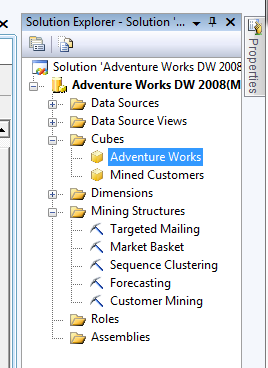
Open up BIDS (SQL Server Business Intelligence Development Studio)
From the file menu select: Open > Analysis Service Database
and choose your databsae and server etc.
Let the old girl sort itself out and then in the Solution Explorer select your cube of interest.

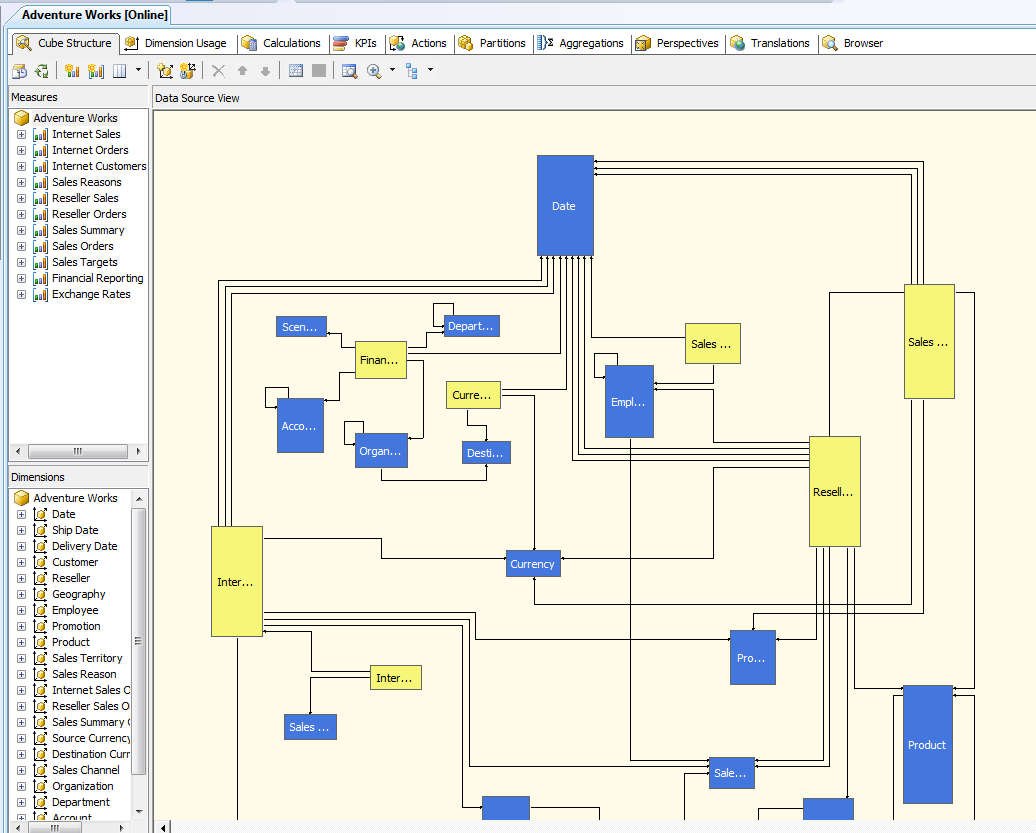
You’ll get something like this interlinked view:

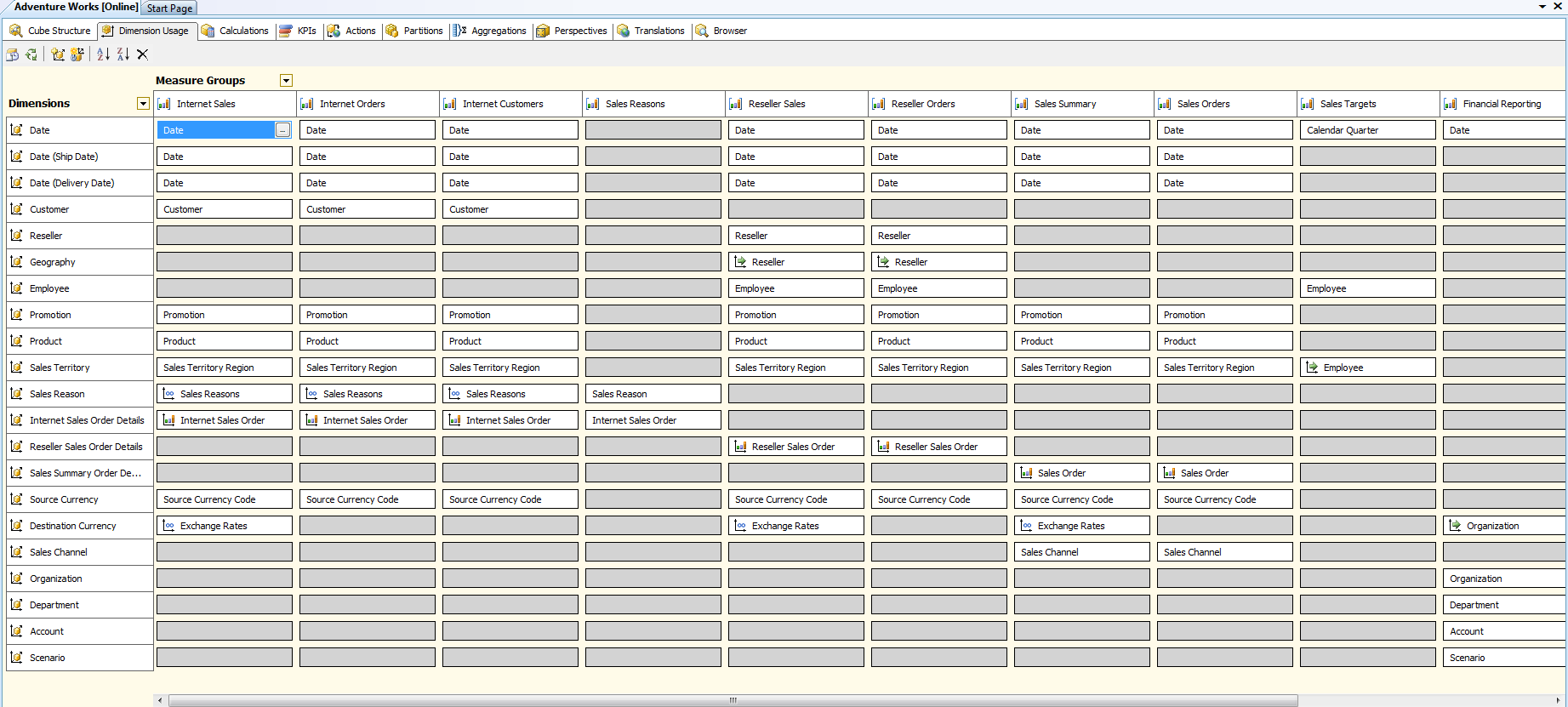
Just switch to the Dimension Usage tab:

and you can see that Department is NOT linked to most measures.

Simple MDX again

WITH
SET [a] AS [Product].[Category].Levels(1).Members
SET [b] AS [Date].[Calendar].Levels(1).Members
SELECT
     Order([a], [b].Item(0), BDESC ) ON ROWS
     ,[b]  ON COLUMNS
FROM [Adventure Works];

The “Category” above is not an MDX keyword, but a part of the hierarchy under the “product” dimension.


What happens if you change the dimension to one in which the measure does not spread over?

WITH
SET [a] AS [Product].[Category].Levels(1).Members
SET [b] AS [Date].[Calendar].Levels(1).Members
SELECT
     Order([a], [b].Item(0), BDESC ) ON ROWS
     ,[b]  ON COLUMNS
FROM [Adventure Works];

Which gives:

CY 2001 CY 2002 CY 2003 CY 2004 CY 2006
Bikes $7,395,348.63 $19,956,014.67 $25,551,775.07 $13,399,243.18 (null)
Components $615,474.98 $3,610,092.47 $5,482,497.29 $2,091,011.92 (null)
Clothing $34,376.34 $485,587.15 $871,864.19 $386,013.16 (null)
Accessories $20,235.36 $92,735.35 $296,532.88 $161,794.33 (null)

Now what do we get if we only look at the top level of the row dimenion?

WITH
SET [a] AS [Product].[Category].Levels(0).Members
SET [b] AS [Date].[Calendar].Levels(1).Members
SELECT
     Order([a], [b].Item(0), BDESC ) ON ROWS
     ,[b]  ON COLUMNS
FROM [Adventure Works];
CY 2001 CY 2002 CY 2003 CY 2004 CY 2006
All Products $8,065,435.31 $24,144,429.65 $32,202,669.43 $16,038,062.60 (null)

Which is just the total “whatever measure this is” for the column dimension.
Now let’s throw in a dimension which doesn’t split the measure.

WITH
SET [a] AS [Department].Levels(1).Members
SET [b] AS [Date].[Calendar].Levels(1).Members
SELECT
     Order([a], [b].Item(0), BDESC ) ON ROWS
     ,[b]  ON COLUMNS
FROM [Adventure Works];

you get this:

CY 2001 CY 2002 CY 2003 CY 2004 CY 2006
Executive General and Administration $8,065,435.31 $24,144,429.65 $32,202,669.43 $16,038,062.60 (null)
Inventory Management $8,065,435.31 $24,144,429.65 $32,202,669.43 $16,038,062.60 (null)
Manufacturing $8,065,435.31 $24,144,429.65 $32,202,669.43 $16,038,062.60 (null)
Quality Assurance $8,065,435.31 $24,144,429.65 $32,202,669.43 $16,038,062.60 (null)
Research and Development $8,065,435.31 $24,144,429.65 $32,202,669.43 $16,038,062.60 (null)
Sales and Marketing $8,065,435.31 $24,144,429.65 $32,202,669.43 $16,038,062.60 (null)

Which looks like a cartesian join enacted on a crosstab. So each example of the row dimention gets an instance of the column dimensions (which the measure is applicable to)
How do I find out how my measures and dimensions are related?
…for that you need BIDS.

MDX again

WITH
SET [a] AS [Product].[Subcategory].Levels(1).Members
SET [b] AS [Date].[Calendar].Levels(1).Members
SELECT
     Order([a],[b].Item(0), BDESC ) ON ROWS,
     Order([b],[a].Item(0), BDESC  ) ON COLUMNS
FROM [Adventure Works] ;

works the same as:

WITH
SET [RowSet]    AS [Product].[Subcategory].Levels(1).Members
SET [ColumnSet] AS [Date].[Calendar].Levels(1).Members
SELECT
     Order( [RowSet], [ColumnSet].Item(0), BDESC ) ON ROWS,
     Order([ColumnSet],[RowSet].Item(0), BDESC  ) ON COLUMNS
FROM [Adventure Works];

A Simple MDX Example Using Adventure Works

WITH
SET [RowSet]    AS [Product].[Subcategory].Levels(1).Members
SET [ColumnSet] AS [Product].[Category].Levels(1).Members
SELECT
     Order( [RowSet], [ColumnSet].Item(0), BDESC ) ON ROWS,
     [ColumnSet]                                   ON COLUMNS
FROM [Adventure Works]

Output(truncated):

CY 2001 CY 2002 CY 2003 CY 2004 CY 2006
Mountain Bikes $4,545,336.51 $9,190,838.09 $8,854,263.03 $3,902,246.74 (null)
Road Bikes $2,850,012.12 $10,765,176.58 $11,294,381.37 $4,448,636.90 (null)
Mountain Frames $371,587.79 $1,400,331.68 $2,067,908.64 $873,844.03 (null)
Road Frames $243,887.19 $1,618,391.51 $1,631,377.27 $356,197.37 (null)
Jerseys $28,255.57 $110,243.77 $290,004.73 $150,804.63 (null)

If you change the value of

     Order( [RowSet], [ColumnSet].Item(0), BDESC )

to

     Order( [RowSet], [ColumnSet].Item(1), BDESC )

then the sorted column changes.
Also if you change the parameter of the Levels in the following section:

SET [RowSet]    AS [Product].[Subcategory].Levels(1).Members
SET [ColumnSet] AS [Date].[Calendar].Levels(1).Members

to

SET [RowSet]    AS [Product].[Subcategory].Levels(0).Members
SET [ColumnSet] AS [Date].[Calendar].Levels(0).Members

then this collapses down to a single number so depending on how many objects exist in the dimensions hierarchy you can use higher and higher numbers for the Levels to get more columns or rows (I think).

WITH
SET [RowSet]    AS [Product].[Subcategory].Levels(0).Members
SET [ColumnSet] AS [Date].[Calendar].Levels(1).Members
SELECT
     Order( [RowSet], [ColumnSet].Item(0), BDESC ) ON ROWS,
     Order([ColumnSet],[RowSet].Item(0), BDESC  ) ON COLUMNS
FROM [Adventure Works] ;

This now sorts by the values in the rows and columns the values used in the columns.